 Taskbar impossible de charger la bibliothèque
un message d'erreur au démarrage avec écrit taskbar impossible de charger la bibliothèque et il ne fonctionne plus

Probably fixed by now. If not, please leave a comment.

High CPU usage in Explorer process
Firstly, keep up the great work on what is a fantastic product! Something of a modern day Windows PowerToy :-)
I'm frequently seeing high CPU usage in the explorer.exe process, which seems to get worse overtime until I reboot. When I say "high", it's not a large number, so much as a constant underlying activity. The system I'm on is a 6C/12T Xeon and after a few days uptime a single thread in the explorer.exe process uses a constant ~0.3% to ~1.0%. It's not substantial, but it's very noticeable when the system is otherwise idle, and I suspect it's also introducing some lag across the Windows UI, possibly due to certain types of GDI calls which use critical sections.
Taking a look at the thread it seems to be attributable to 7+ TT. I've captured a sample stack trace via Process Explorer and also recorded a more detailed trace via Windows Performance Recorder if that were at all useful. Would you be able to provide any thoughts or advice on how to best troubleshoot this and isolate the underlying cause?
System is Windows 10 v1903 x64 w/ 7+ TT 5.8.
Sample stack trace:
ntoskrnl.exe!KiSwapContext+0x76
ntoskrnl.exe!KiSwapThread+0xbfd
ntoskrnl.exe!KiCommitThreadWait+0x144
ntoskrnl.exe!KeWaitForSingleObject+0x255
ntoskrnl.exe!KiSchedulerApc+0x397
ntoskrnl.exe!KiDeliverApc+0x2e8
ntoskrnl.exe!KiCheckForKernelApcDelivery+0x2b
ntoskrnl.exe!KeLeaveCriticalRegion+0x37
win32kbase.sys!HANDLELOCK::vUnlock+0x12e
win32kbase.sys!hbmSelectBitmap+0x19d
win32kfull.sys!NtGdiSelectBitmap+0x11
ntoskrnl.exe!KiSystemServiceCopyEnd+0x25
win32u.dll!NtGdiSelectBitmap+0x14
gdi32full.dll!SelectObjectImpl+0x1f0
USER32.dll!CreateIconIndirect+0x1c7
comctl32.dll!Common_GetIcon+0x39b
comctl32.dll!CImageList::GetIcon+0x2e
comctl32.dll!ImageList_GetIcon+0x8a
Explorer.EXE!CTrayNotify::_ModifyNotify+0x536
Explorer.EXE!CTrayNotify::_TrayNotifyIcon+0x9c1
Explorer.EXE!TrayUI::HandleCopyData+0x7c
Explorer.EXE!CTray::v_WndProc+0xf8
Explorer.EXE!CImpWndProc::s_WndProc+0x78
USER32.dll!UserCallWinProcCheckWow+0x2bd
USER32.dll!CallWindowProcW+0x8e
comctl32.dll!CallNextSubclassProc+0x89
comctl32.dll!DefSubclassProc+0x77
inject.dll!Init+0x1a7ab
comctl32.dll!CallNextSubclassProc+0x89
comctl32.dll!MasterSubclassProc+0xa2
USER32.dll!UserCallWinProcCheckWow+0x2bd
USER32.dll!DispatchClientMessage+0x9c
USER32.dll!_fnCOPYDATA+0x50
ntdll.dll!KiUserCallbackDispatcherContinue
win32u.dll!NtUserPeekMessage+0x14
USER32.dll!_PeekMessage+0x42
USER32.dll!PeekMessageW+0x149
Explorer.EXE!CTray::_MessageLoop+0x4c
Explorer.EXE!CTray::MainThreadProc+0x4d
shcore.dll!_WrapperThreadProc+0xf5
KERNEL32.DLL!BaseThreadInitThunk+0x14
ntdll.dll!RtlUserThreadStart+0x21

Could not load library (5)
The latest update has broken the software for me. I am running Windows 10 Enterprise. On startup/rerun I get:
7+ Taskbar Tweaker: Could not load library (5)
Library initialization failed, perhaps your Windows version is not supported.
You're probably using Windows 10 version 1709 with the KB4520006 update. The incompatibility was fixed in the beta version of 7+ Taskbar Tweaker. You can get it here.

 I use multiple monitors and would be grateful if I had an OWN taskbar per monitor.
Greetings to all
I use multiple monitors and would be grateful if I had my own taskbar per monitor.
For months I've been looking for a way to have a taskbar on each of my (4) monitors.
Each of my monitors is divided into its own "subject area". So it would be great if I could pin on the programs used for the individual subject areas.
My example (4 monitors, 3 side by side, a huge one on top)
Monitor 1: only trading software runs here
Monitor 2: (the main screen) here are my browsers open, CMS/CMR, Word/Excel
Monitor 3: DeepL, Rambos for communication
Monitor 4: eMail, Wallets, Youtube :D
Is it possible to do something like this?
greetz
Christian
Hi Christian,
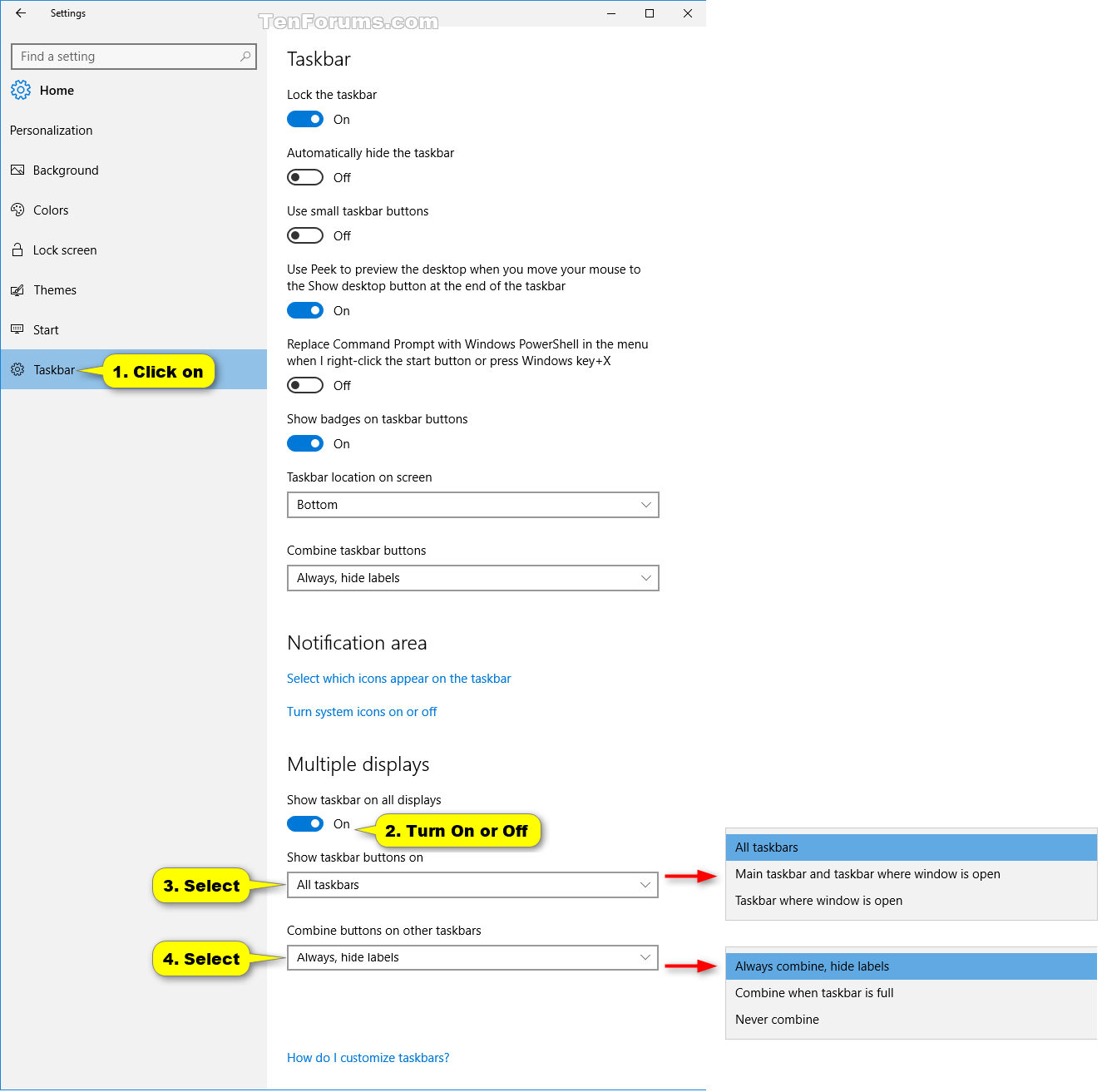
Since Windows 8 you can have a taskbar on every monitor, and decide which items appear on every taskbar (e.g. all items on all taskbars, or only items of windows from the same monitor).
See the image below, or visit this link for a detailed guide.

 Need help working with multiple lines of Taskbar icons
Suppose I have 3 lines of taskbar icons with only one of the three lines visible
at any given time. When I add a new icon to the taskbar, it gets added to the 3rd (last)
of the 3 lines. How can I move that icon from the 3rd line to the 1st line?
Also, is there a way to force a new icon to go onto the 1st line instead of onto the 3rd line?

inject.dll crashes explorer with latest win 10 insider build and 7tt beta 5.8.0.2
running latest windows insider & taskbar tweaker beta, works ok for a while until something triggers it, then explorer crashes and restarts repeatedly until I kill explorers or "7+ Taskbar Tweaker.exe". Generates a whole lot of stuff in the Application log so I don't know where to start - here's an example
- <Event xmlns="http://schemas.microsoft.com/win/2004/08/events/event">
- <System>
<Provider Name="Windows Error Reporting" />
<EventID
Qualifiers="0">1001</EventID>
<Level>4</Level>
<Task>0</Task>
<Keywords>0x80000000000000</Keywords>
<TimeCreated SystemTime="2019-10-25T06:06:08.667638400Z" />
<EventRecordID>1663</EventRecordID>
<Channel>Application</Channel>
<Computer>Ryzen9</Computer>
<Security />
</System>
- <EventData>
<Data>1906846850083503954</Data>
<Data>4</Data>
<Data>APPCRASH</Data>
<Data>Not available</Data>
<Data>0</Data>
<Data>explorer.exe</Data>
<Data>10.0.19008.1</Data>
<Data>340fd273</Data>
<Data>inject.dll</Data>
<Data>5.8.0.2</Data>
<Data>5db141bd</Data>
<Data>c0000005</Data>
<Data>000000000000eb30</Data>
<Data />
<Data />
<Data>\\?\C:\ProgramData\Microsoft\Windows\WER\Temp\WERC684.tmp.WERInternalMetadata.xml</Data>
<Data>\\?\C:\ProgramData\Microsoft\Windows\WER\ReportArchive\AppCrash_explorer.exe_681cb64c94917312b7d5ee2fee835528927c03e_a3caa76f_f0035701-b0e3-480d-8430-07617ff576e6</Data>
<Data />
<Data>0</Data>
<Data>ee4f6b93-8b4c-4324-95c4-18bdacbe965d</Data>
<Data>268439552</Data>
<Data>d4256b46849f4588fa767b1b744cbf52</Data>
<Data>0</Data>
</EventData>
</Event>
Please try the newly released v5.8.0.3 beta. It was adapted to the recent changes based on build 19013. I didn't test it thoroughly, but I think I fixed the most incompatibility aspects and most options should work.
Form the logs I can see that you're running build 19008. If v5.8.0.3 doesn't work for you, please update to Windows 10 build 19013.

Thank you for the report.
I don't see the detection on my computer, and it's not detected by Microsoft on VirusTotal.
There can be several reasons for the detection you see:
- One is that this is a false positive detection. False positives are unfortunately common for new versions of 7+ Taskbar Tweaker. Please see the FAQ here and this blog post.
- The other is that your file is indeed infected. This can happen if you downloaded it on a third party website, or if another malware on your computer infected it. I highly doubt that this is the case, since 5.8 is a relatively new version, and false positives are so common for it.
In any case, if you have any doubt, you can contact Microsoft about it and assure that the file you posses is clean. I guarantee that the files that are served from the official 7+ Taskbar Tweaker website are 100% virus free.

delay for ungroup/decombine on mouse hover
first: loving your tool!
one thing i realized is, that when using the taskbar as usual and having the decombining active, i often click windows i didnt want to click because i move over a symbol on my way to the target, and it decombines (or recombines) and changes the position of the target when you have reached it (usually you are over a decombined window now).
thus it would be really helpful if there was a short configurable delay for combining and decombining of the symbol, so that you wont have the changing positions when you just quickly want to reach a given target
Thank you for the suggestion. Closing since it's a duplicate of this topic:
https://tweaker.userecho.com/topics/608-add-delay-before-decombine-on-hover

"no_width_limit" no longer works for vertical taskbar under Windows 8.1
I'm on a single (primary) display.

Right Click on Taskbar items to Minimize Window
I would like to suggest an option: Right clicking on a Taskbar item can Minimize it (the same option that is shown in the "Middle click" section of the "Taskbar items" column).
I know it is possible to left click on a Taskbar item, which is active, to minimize it. However if the Taskbar item is not active, the first left click activates the Taskbar item. You must then left click a second time to minimize the item. I believe that adding a direct Minimize function with the Right click would add an extra level of efficiency.
I already have Middle click configured to closing Taskbar item. I would love to also be able to Minimize a Taskbar item with the right click.
Cheers!
That's already possible by using advanced options.
Open the Advanced Options Editor (more details), and add the following value to Mouse Button Control:
Name: taskbaritem|rclick
Value: 2
See the help file for more details.
Klientų aptarnavimo paslaugos teikia UserEcho